Resources
Guides, docs & links
Everything to get the most out of QCam.
 Tutorial
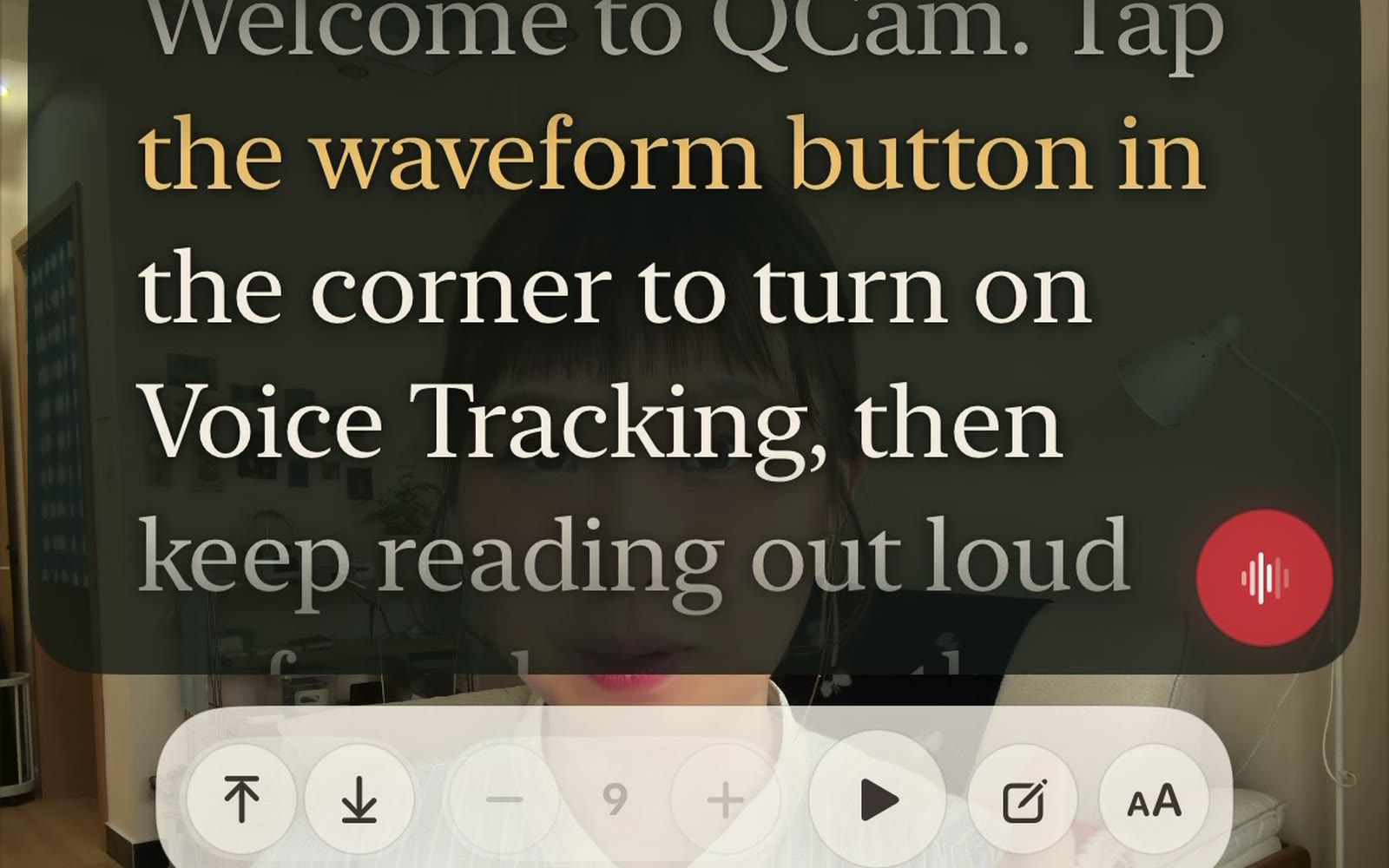
The prompter that listens
QCam's teleprompter follows your voice. Read at your own pace and the script keeps up; pause, and it waits. No timers, no scroll wheel, no rehearsing to a clock.
 Tutorial
Read the script, keep the eye contact
The prompter runs right over the live preview, beside the lens. You read; the viewer sees someone looking at them.
 Tutorial
Pick the frame before you roll
On the iPhone 17 generation's square front sensor, 9:16, 1:1 and 16:9 are chips in the camera. Tap one and the preview reshapes live; the take records in the frame you chose.
 Tutorial
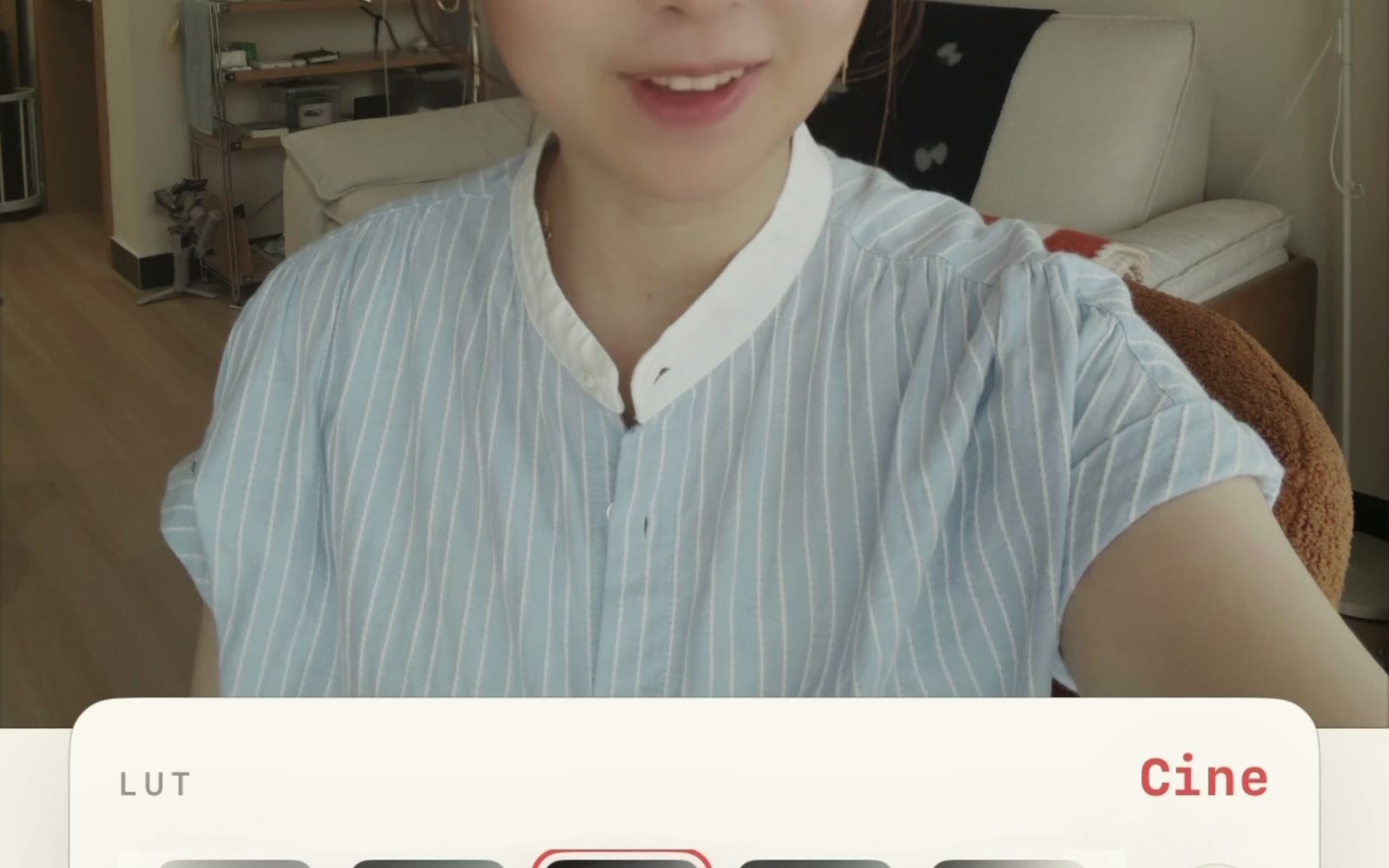
Shoot Log, see the look live
On Pro iPhones QCam records Apple Log while the preview wears a graded look. Flat file underneath, finished color in your eye, and the decision stays reversible forever.
 Tutorial
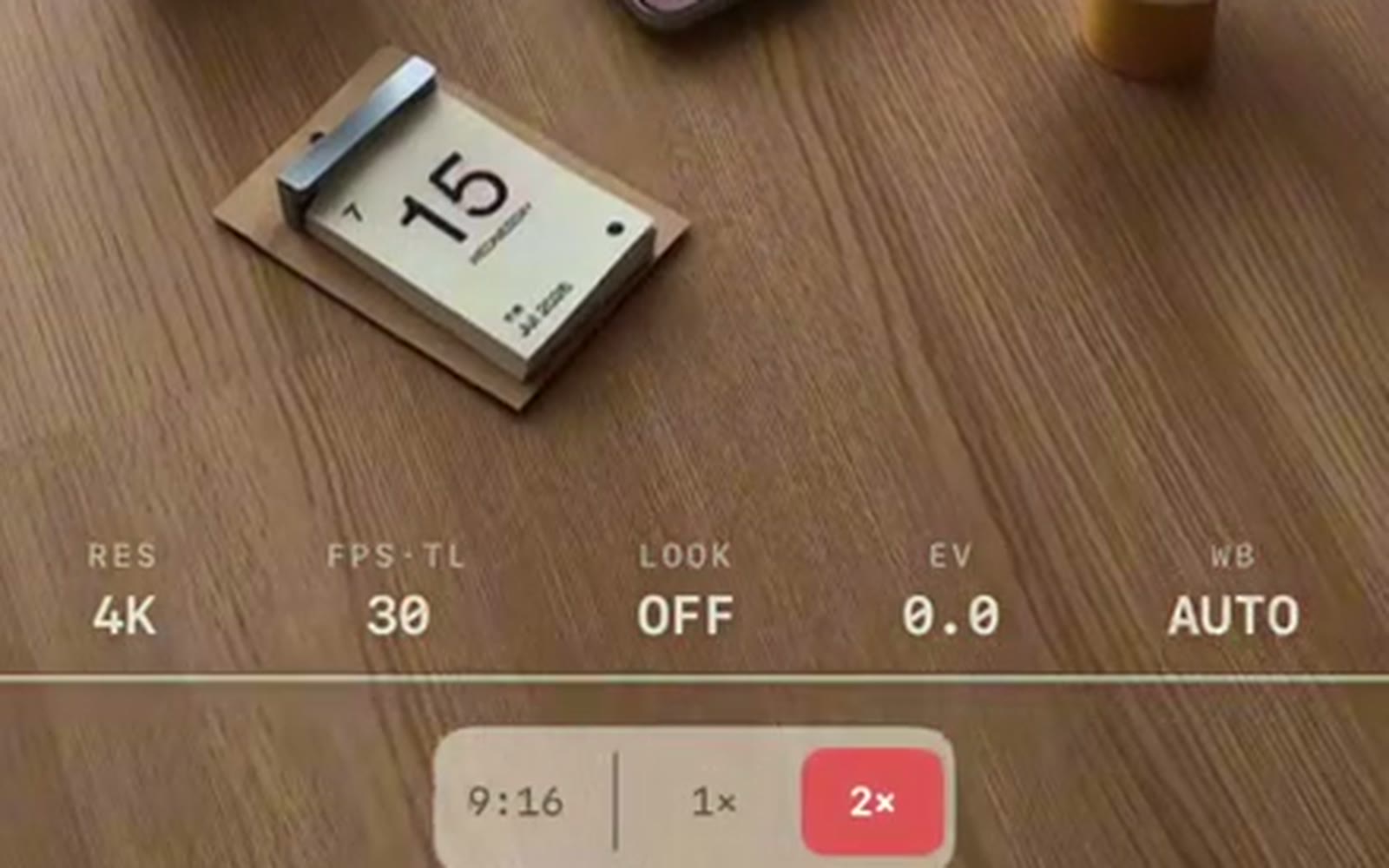
Flip to the rear glass
The front camera is the studio; the rear cameras are the field kit. One tap flips QCam around, and the lens row puts real glass, ultra-wide to telephoto, under your thumb.
 Tutorial
What your iPhone unlocks
QCam adapts to the glass it is standing on. Two capabilities decide everything: the square front sensor and Apple Log. Here is the honest map.
 Tutorial
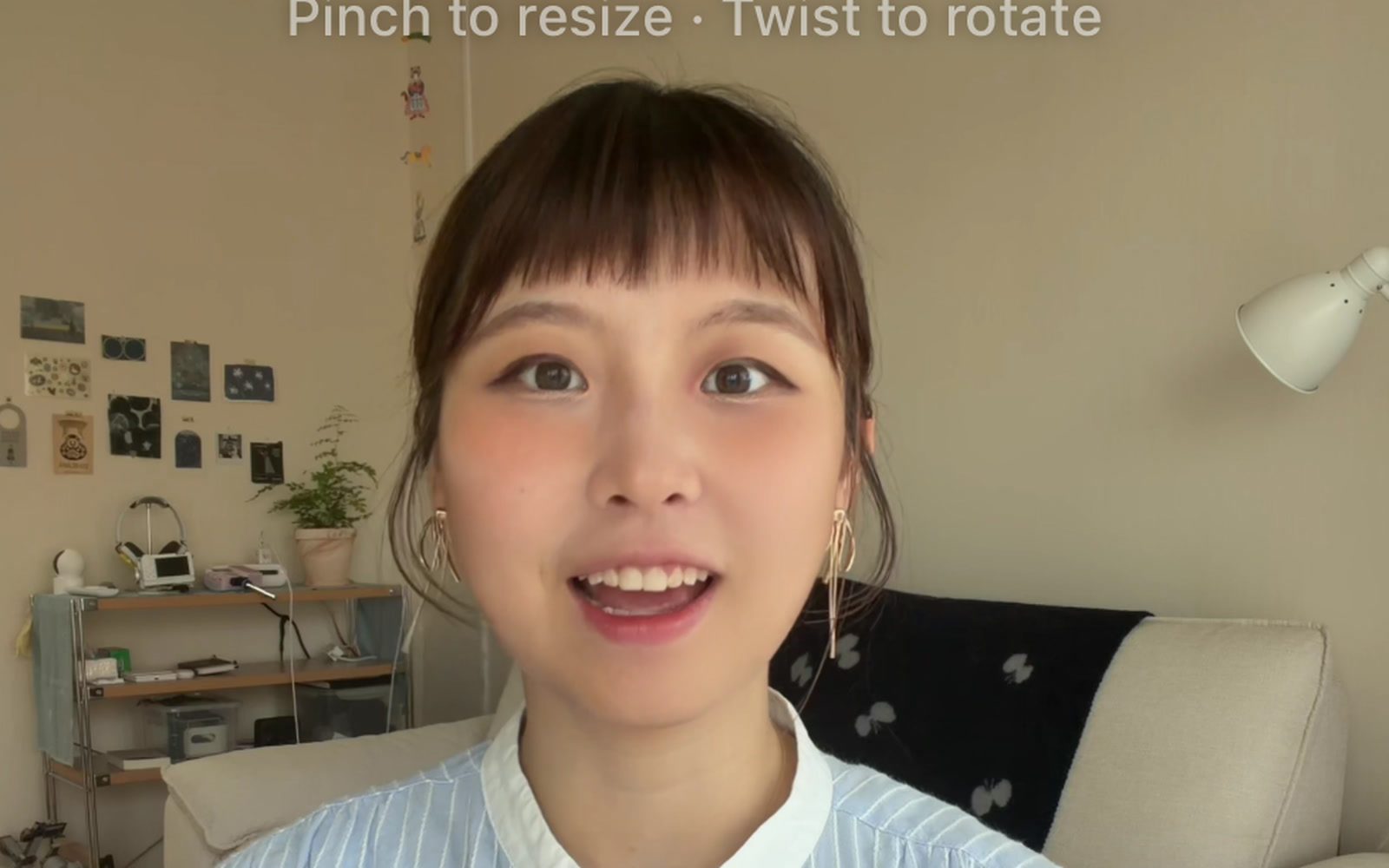
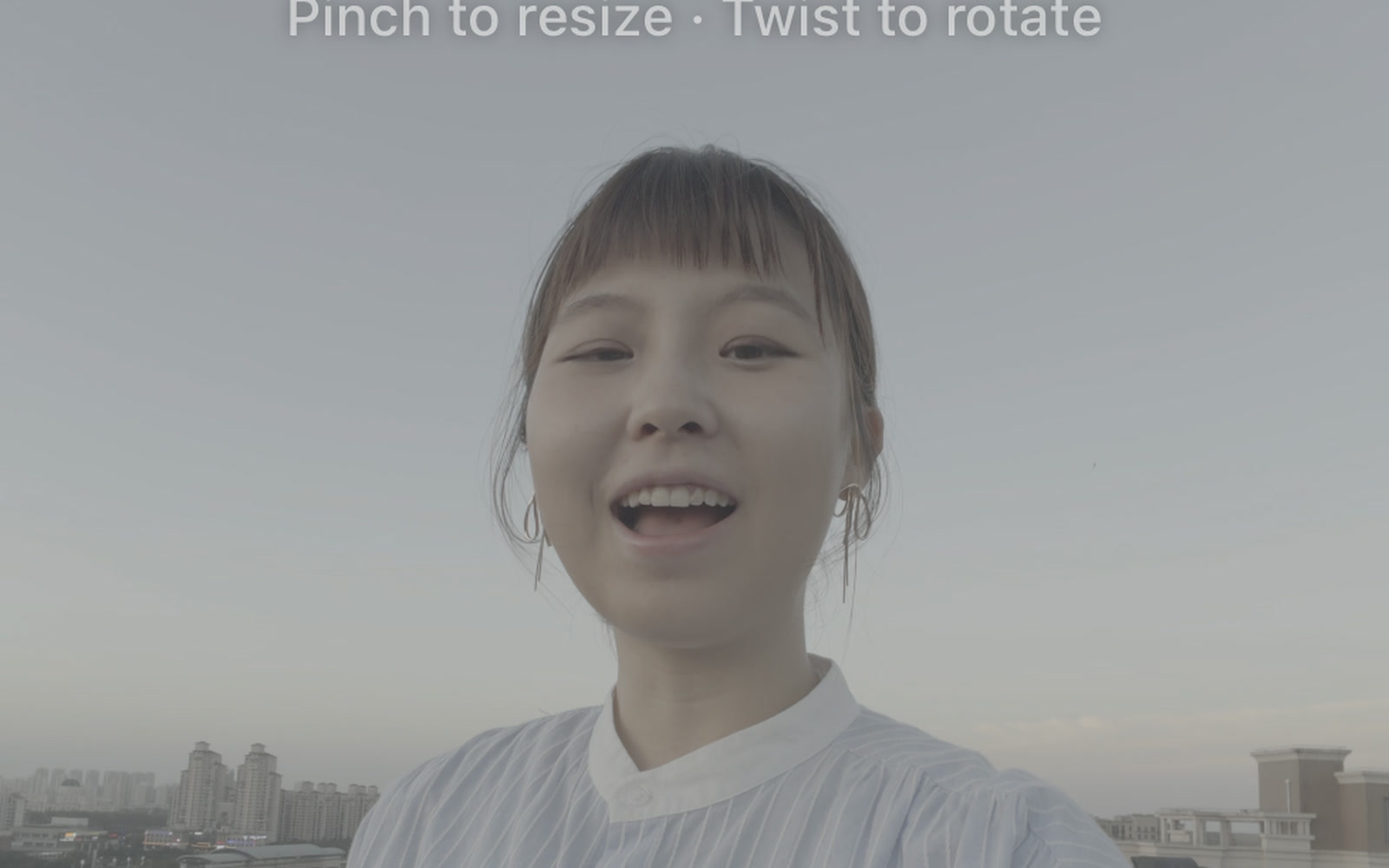
The one-gesture punch-in
The classic punch-in is one split and one pinch in QCam. Zoom belongs to a single clip, so the frame snaps tighter exactly at the cut.
 Tutorial
Grade a clip in one tap
QCam's looks grade Apple Log footage instantly, per clip. Open the look row, tap, done. Two clips can wear two different grades in the same take.
 Tutorial
Dial in your color
Beyond one-tap looks there is a real color panel: seven sliders, applied live, owned by a single clip, with Apply to All when the whole take should match.
 Tutorial
One take, every frame
Shoot once on the square sensor, then choose the frame in the editor: square for the feed, 4:5 for the grid, the full tall frame for Shorts. The original stays whole.
 Tutorial
Cut out the bad take
The bread-and-butter edit of every talking-head video: fence the flub with two splits, delete the middle, and the timeline closes the gap into a clean jump cut.
 Tutorial
Pull a thumbnail from the take
Your thumbnail is already inside your take. Park on the exact frame, tap Still Frame, and a full-quality graded frame lands in Photos.
 Tutorial
Straighten a crooked shot
Rotation in QCam is continuous, not quarter turns. Twist on the preview, read the degrees live, and land on level with a gentle snap.
 Tutorial
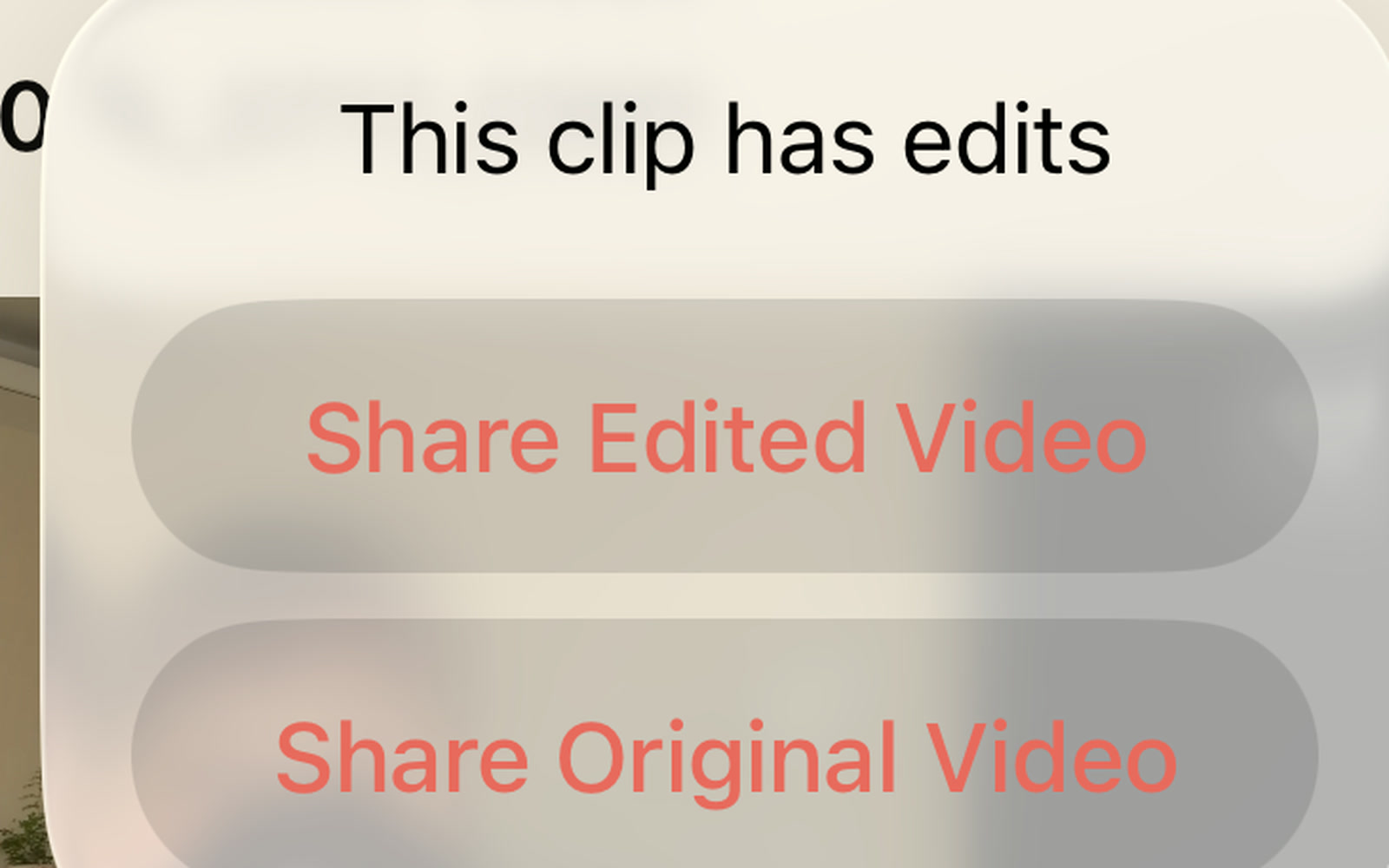
Share the cut, keep the original
Editing in QCam never forks your files. The library plays your cut in place, sharing asks which version you mean, and the raw take stays whole underneath.
 Tutorial
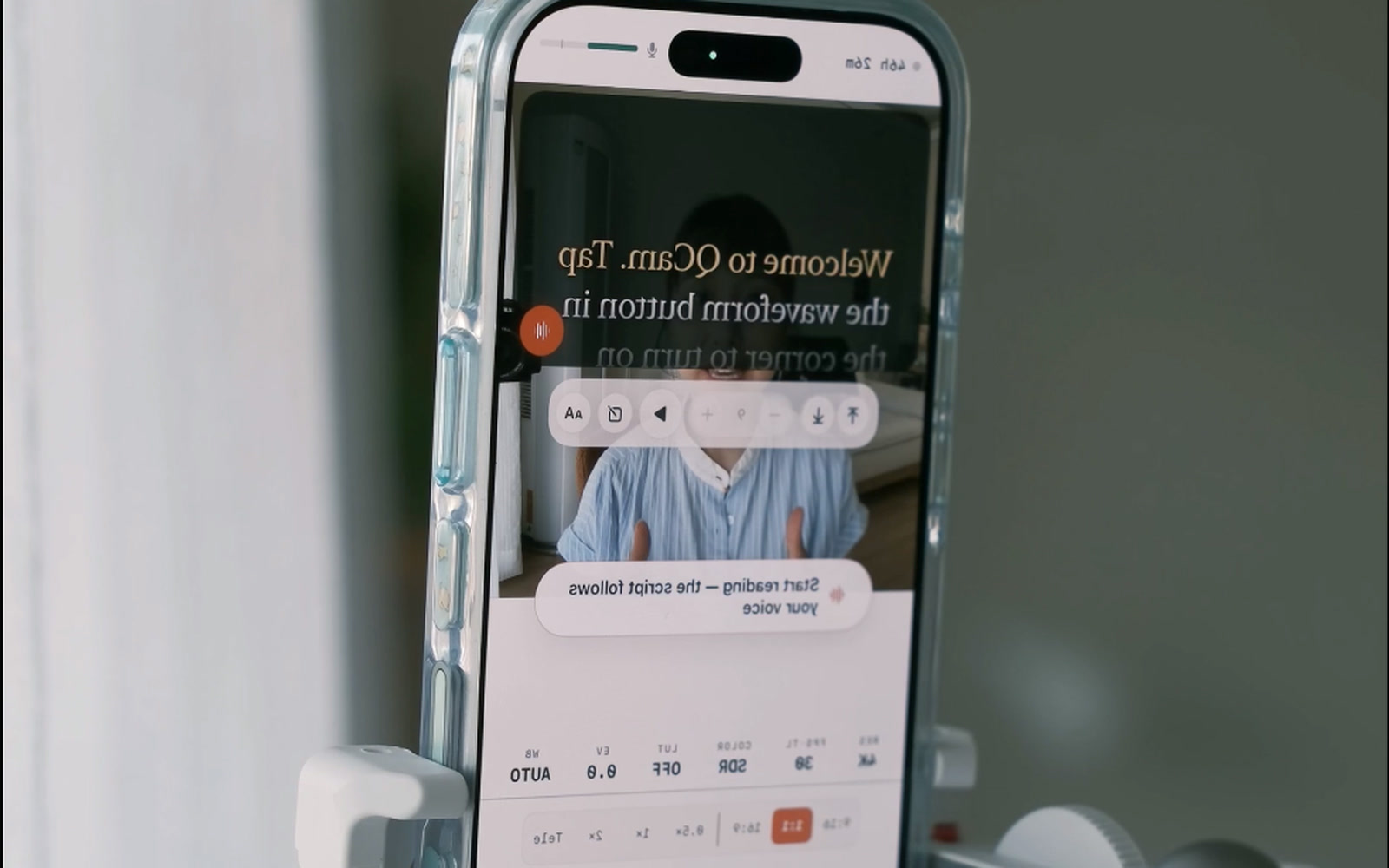
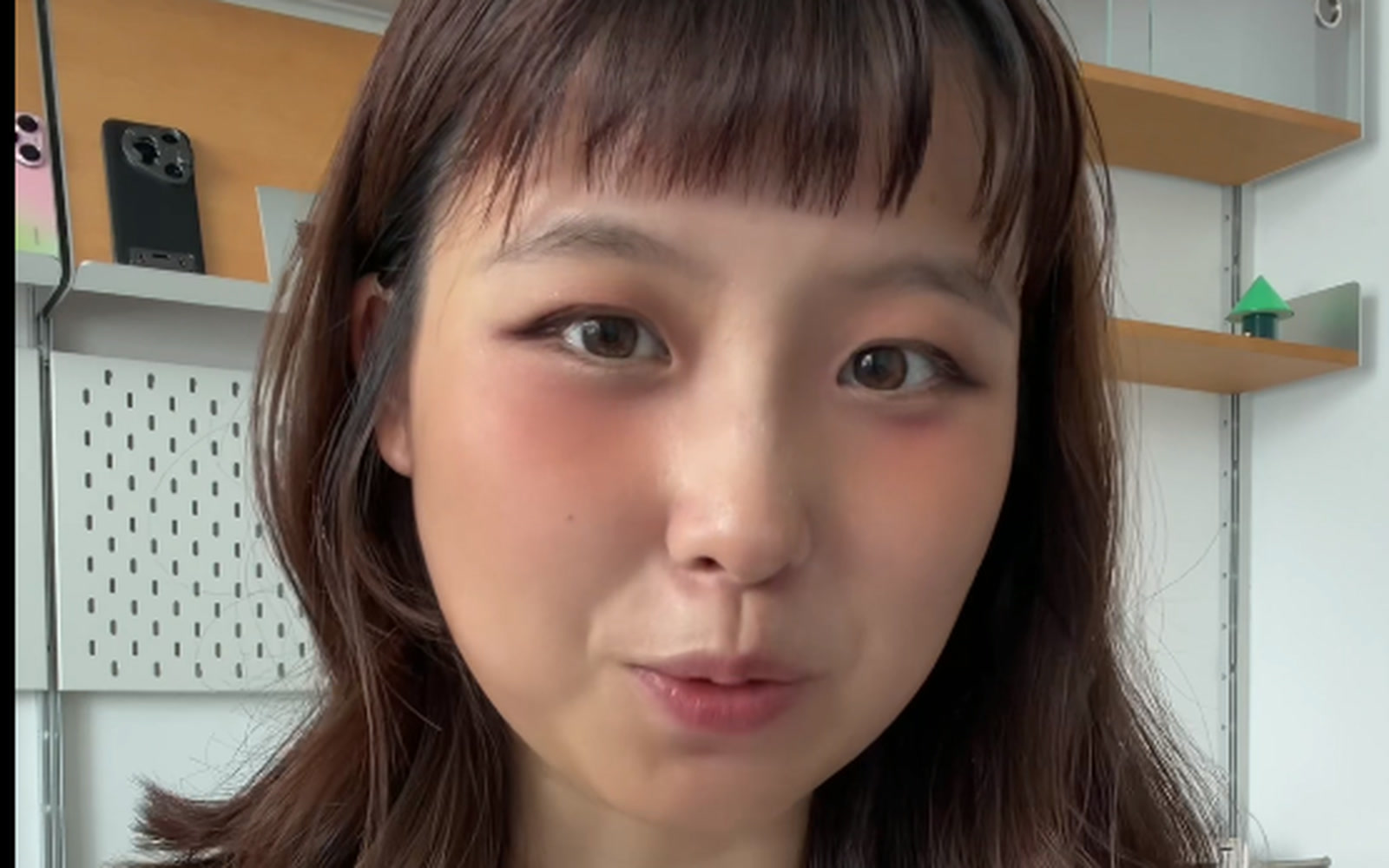
Un-mirror a take
Selfie takes sometimes land with writing reading backwards. One tap on Mirror flips the clip back, and only the clip that needs it.
 Tutorial
Silence one clip, not the take
Mute is per clip in QCam. Kill the audio on the one shot with the cough or the traffic, and the neighbors keep their sound and their sync.
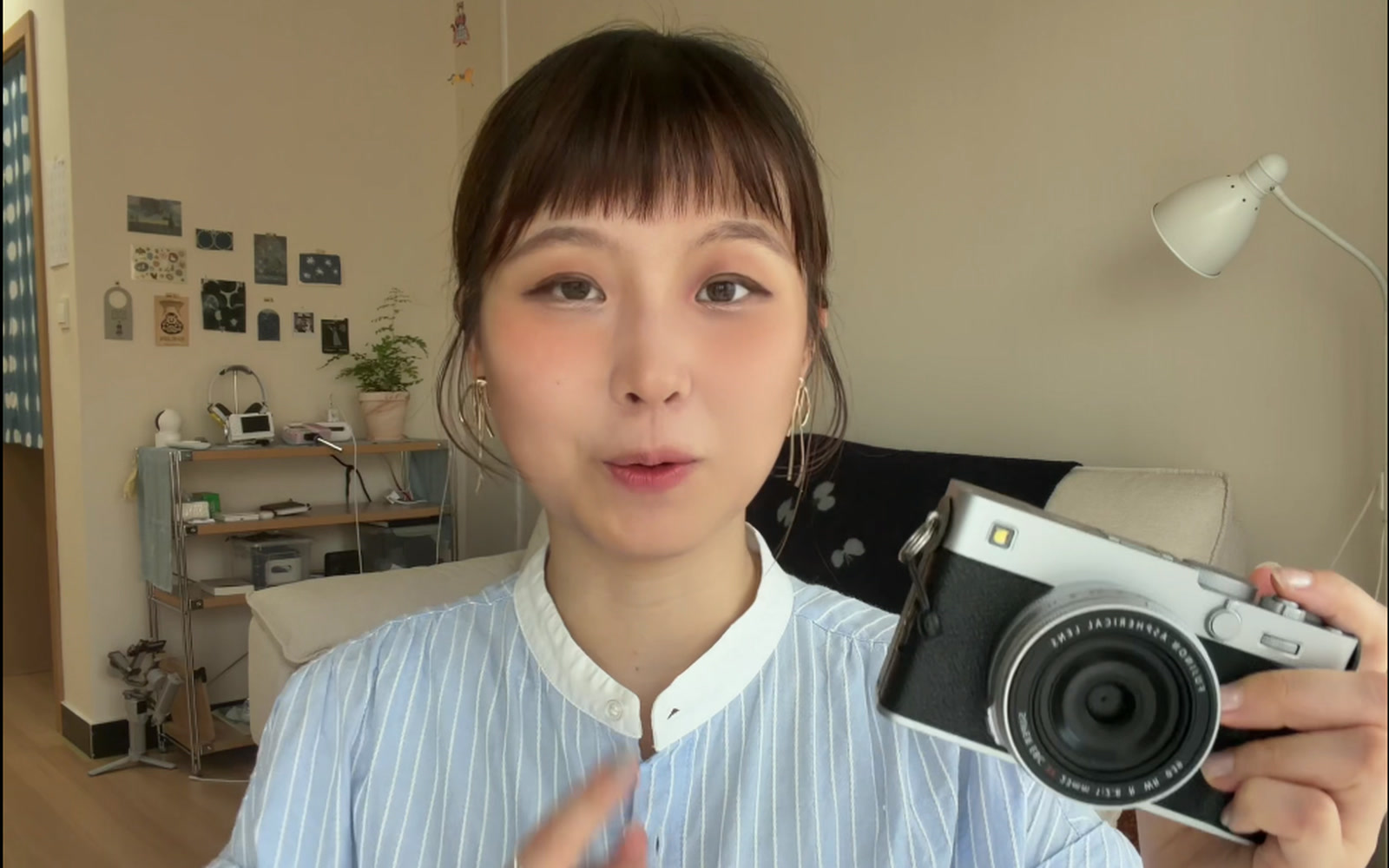 Tutorial
Fly around the timeline
The timeline's quiet superpowers: scrub from anywhere, hop straight between cuts, and step single frames, without ever grabbing a tiny handle.
 Tutorial
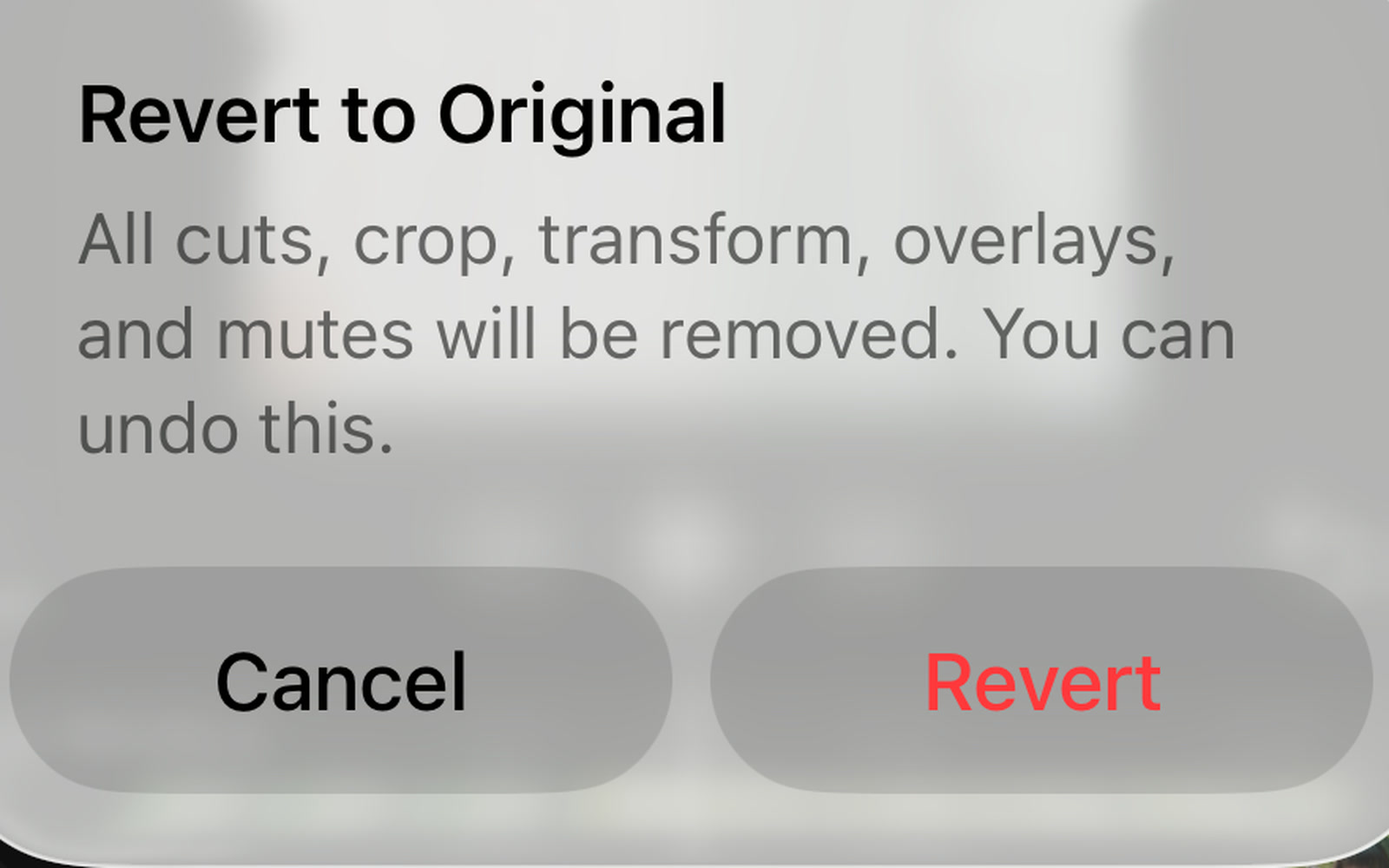
Edit without fear
Every move in the editing room is one undo step, and Revert to Original brings back the untouched recording no matter how far you went.
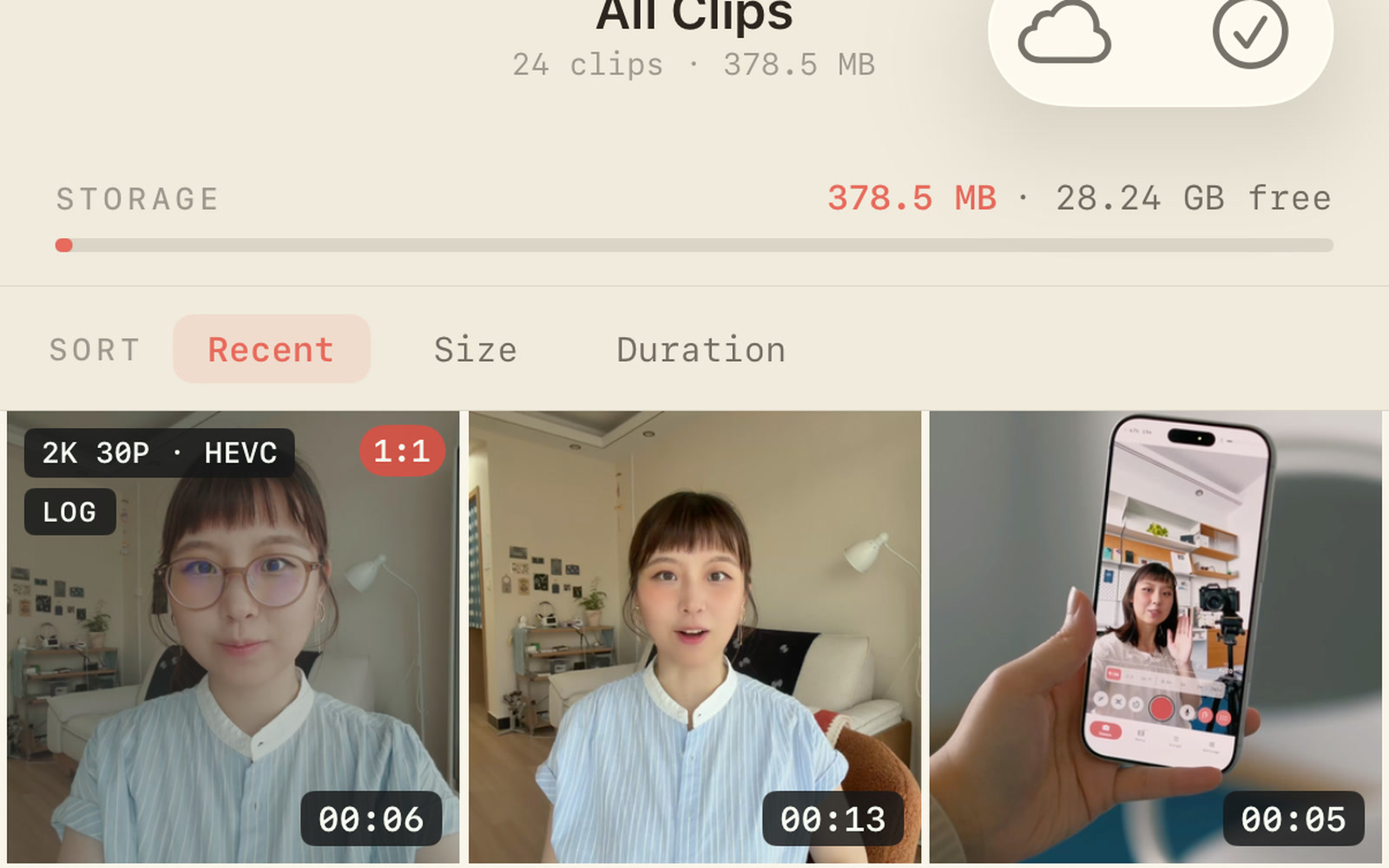 Tutorial
Know your library at a glance
QCam's Media library is not a dumb camera roll: every cell announces its resolution, frame rate, codec and aspect, LOG and EDITED wear badges, and the sort chips reorganize everything in a tap.
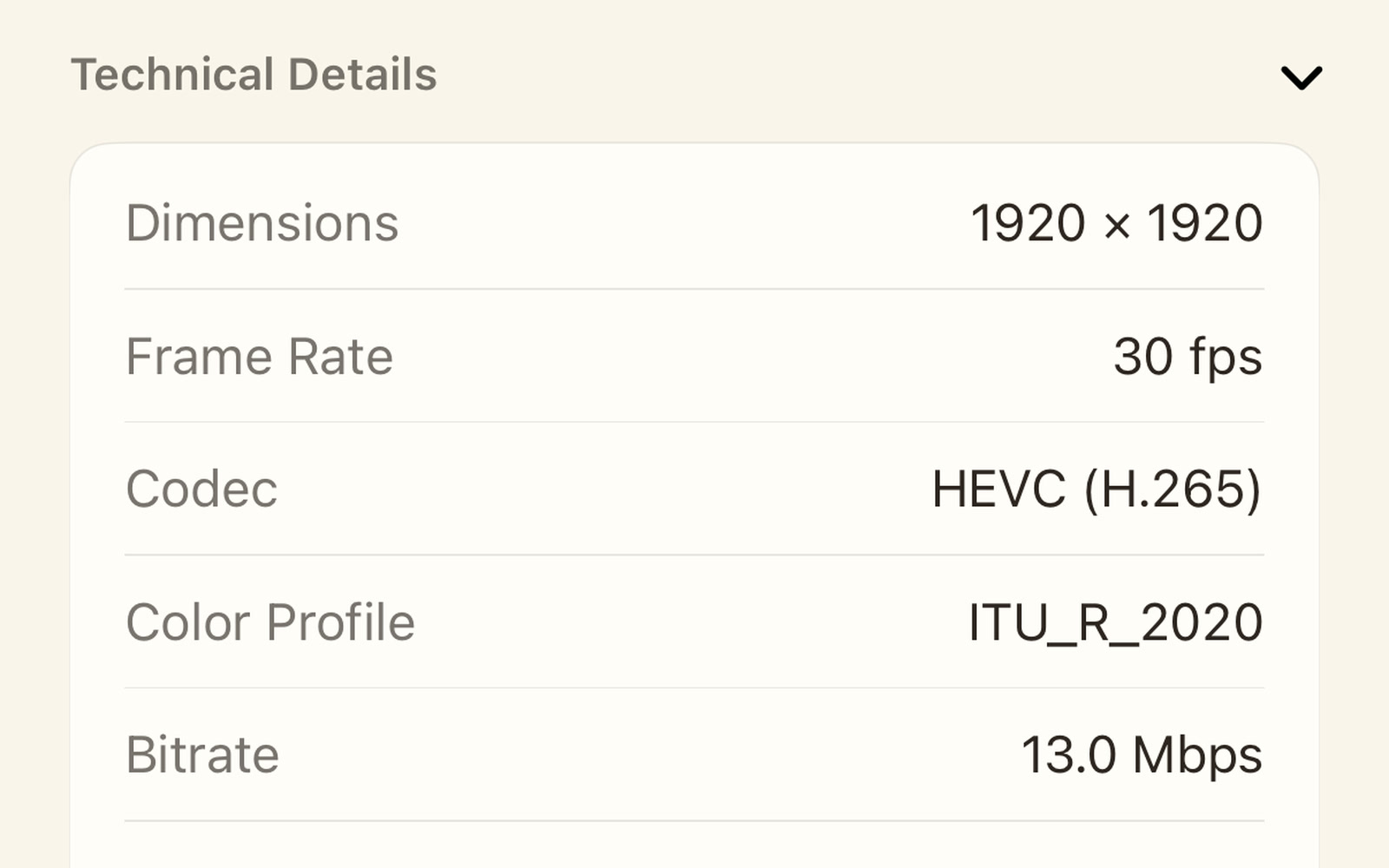 Tutorial
One clip, all its facts
The clip detail page is the take's dossier: play it in place, read the specs as chips, and unfold Technical Details when you want every number.
 Tutorial
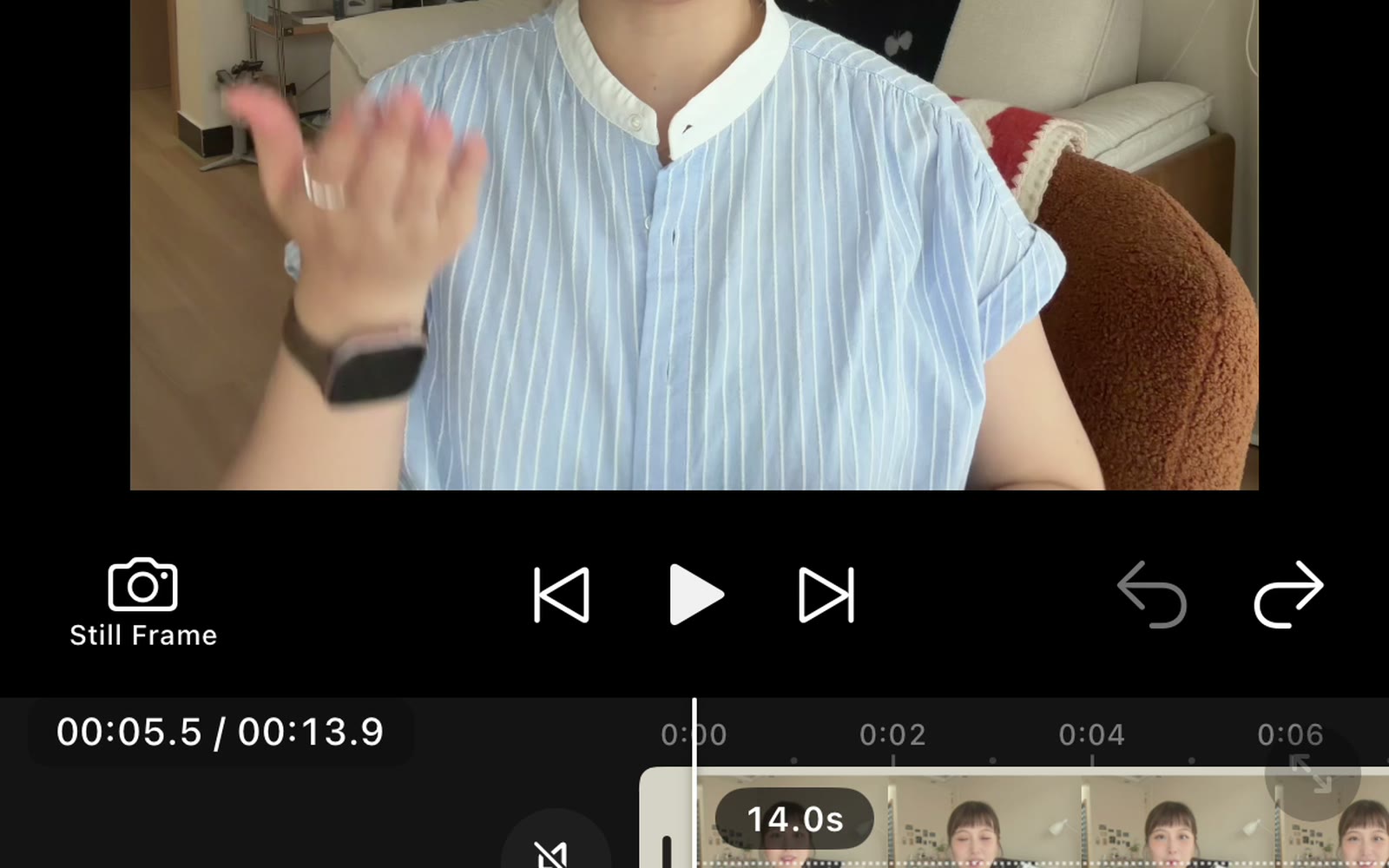
Cut a take in the editing room
Trim the flubs, split the take, slip a cut into place. Five short moves in QCam's editing room, each shown in a real screen recording.